Showing posts with label Technology. Show all posts

Friday, May 2, 2014

HTTP Status Codes

I can't always remember all the HTTP status Codes. I'm creating this blog post just to remember what they are. 


1xx: Informational - Request received, continuing process
2xx: Success - The action was successfully received, understood, and accepted
3xx: Redirection - Further action must be taken in order to complete the request
4xx: Client Error - The request contains bad syntax or cannot be fulfilled
5xx: Server Error - The server failed to fulfill an apparently valid request


While many of these are common (404, 200, 403) many are not and hard to remember. This list is modified from the wc3 and the wikipedia.


1xx informational

100
Client should continue with request

101
Server is switching protocols

102
Server has received and is processing the request

103
Resume aborted PUT or POST requests

122
URI is longer than a maximum of 2083 characters

2xx success

200
standard response for successful HTTP requests

201
request has been fulfilled; new resource created

202
Request accepted, processing pending

203
Request processed, information may be from another source

204
Request processed, no content returned

205
Request processed, no content returned, reset document view

206
Partial resource return due to request header

207
XML, can contain multiple separate responses

208
results previously returned

226
request fulfilled, response is instance-manipulations

3xx redirection

300
multiple options for the resource delivered

301
this and all future requests directed to the given URI

302
temporary response to request found via alternative URI

303
permanent response to request found via alternative URI

304
resource has not been modified since last requested

305
content located elsewhere, retrieve from there

306
subsequent requests should use the specified proxy

307
connect again to different URI as provided

308
connect again to a different URI using the same method

4xx client error

400
request cannot be fulfilled due to bad syntax

401
Authentication is possible but has failed

402
Payment required, reserved for future use

403
Server refuses to respond to request

404
Requested resource could not be found

405
Request method not supported by that resource

406
Content not acceptable according to the Accept headers

407
client must first authenticate itself with the proxy

408
server timed out waiting for the request

409
request could not be processed because of conflict

410
resource is no longer available and will not be available again

411
request did not specify the length of its content

412
server does not meet request preconditions

413
request is larger than the server is willing or able to process

414
URI provided was too long for the server to process

415
server does not support media type

416
Client has asked for unprovidable portion of the file

417
Server cannot meet requirements of Expect request-header field

420
Twitter rate limiting

422
Request unable to be followed due to semantic errors

423
Resource that is being accessed is locked

424
Request failed due to failure of a previous request

426
Client should switch to a different protocol

428
origin server requires the request to be conditional

429
user has sent too many requests in a given amount of time

431
server is unwilling to process the request

444
server returns no information and closes the connection

449
request should be retried after performing action

450
Windows Parental Controls blocking access to webpage

451
The server cannot reach the client's mailbox.

499
connection closed by client while HTTP server is processing

5xx server error

500
generic error message

501
server does not recognise method or lacks ability to fulfill

502
server received an invalid response from upstream server

503
server is currently unavailable

504
gateway did not receive response from upstream server

505
server does not support the HTTP protocol version

506
Content negotiation for the request results in a circular reference

507
Server is unable to store the representation

508
Server detected an infinite loop while processing the request

509
Bandwidth limit exceeded

510
Further extensions to the request are required

511
Client needs to authenticate to gain network access

598
network read timeout behind the proxy

599
network connect timeout behind the proxy


Wednesday, April 30, 2014

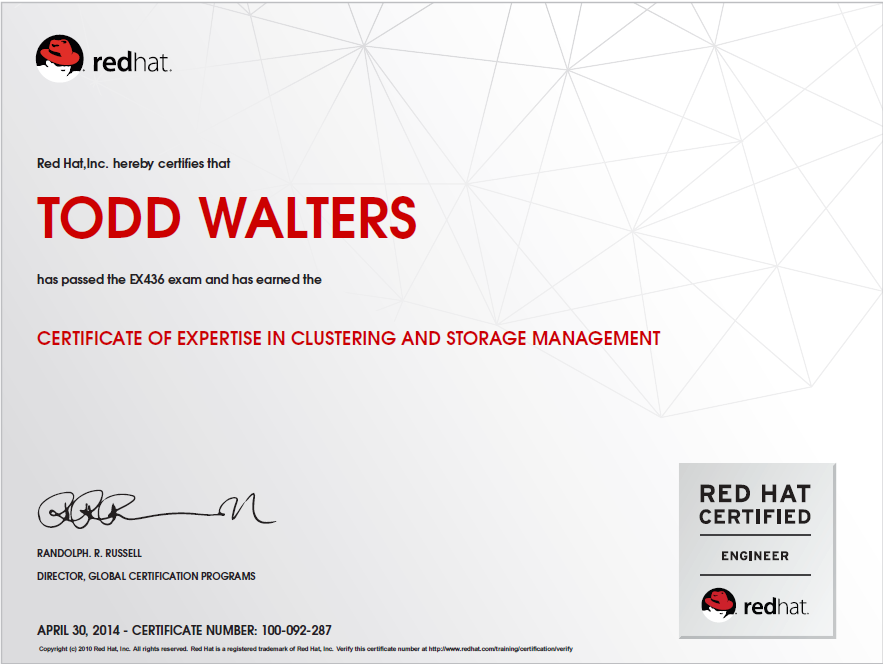
I passed Red Hat's Exam 436 today, Certificate of Expertise in Clustering and Storage Management.  Now on to my RHCDS and hope to pass the Satellite exam next. I really enjoy taking Red Hat exams as they are a great challenge since they are all hands on and you have to configure everything. I highly recommend any one interested in learning more about Linux and any of Red Hat products to take their training classes and/or take their exams.


Friday, February 7, 2014

RHEL's New and Improved Installation Experience.

Red Hat Enterprise Blog has a new post today about the new and improved installation experience. Please see the post at this page http://rhelblog.redhat.com/2014/02/07/anaconda/

For a RHEL 7 Beta Install Guide see my post here "How to Install Red Hat Enterprise Linux Beta 7"


Thursday, January 30, 2014

How to Create iSCSI Server and Target

Create ISCI Server 
  1. yum install scsi-target-utils.x86_64' 
  2. Turn on tgtd 
    1. # chkconfig tgtd on 
    2. # service tgtd start Starting SCSI target daemon:                               [  OK  ]  
  3. Use tgtadm  to configure target 
    1. tgtadm -help  

  1. Check if any existing targets exist 
    1. tgtadm --lld iscsi --mode target --op show 

  2. Configure the first target ID as 101 
    1. # tgtadm --lld iscsi --mode target --op new --tid 101 --targetname iqn.server1.example.com:target1  
  3. Verify the target  
    1. # tgtadm --lld iscsi --mode target --op show   
  4. Create 1G logical volume for testing (of course in the real world you'd use a storage volume or lun) 
    1. ]# lvcreate -L 1G -n lv_iscsi vg_server1  
  5. Attach LUN to the ISCSI Target (decide which disk to use - example in step above) 
    1. ]# tgtadm --lld iscsi --mode logicalunit --op new --tid 101 --lun 1 --backing-store /dev/mapper/vg_server1-lv_iscsi  
    2.  repeat of you want two 'luns'  
  6. Verify new lun 
    1. # tgtadm --lld iscsi --mode target --op show 

  7. Share to specific Network or Client 
    1. # tgtadm --lld iscsi --mode target --op bind --tid 101 --initiator-address 192.168.0.0/24 

  8. Configure authentication to the target 
    1. # tgtadm --lld iscsi --mode account --op new --user iclient --password password  
  9. Attach user to the 101 target 
    1. # tgtadm --lld iscsi --mode account --op bind --tid 101 --user iclient 

  10. Verify User was attached to target 101 
    1. # tgtadm --lld iscsi --mode account --op show Account list:     iclient 
    2. # tgtadm --lld iscsi --mode target --op show 

  11. Backup the original configuration 
    1. # cp /etc/tgt/targets.conf /etc/tgt/targets.orig  
  12. Create configuration file from the dump command 
    1. # tgt-admin --dump default-driver iscsi  <target iqn.server1.com.example.target1>         backing-store /dev/mapper/vg_server1-lv_iscsi         incominguser iclient PLEASE_CORRECT_THE_PASSWORD         initiator-address 192.168.0.0/24 </target>   
  13. Copy or 'echo' the output of above dump command into targets.conf file to allow for persitance  
    1. tgt-admin --dump >> /etc/tgt/targets.conf 
    2. remove or comment out the duplicate 'default-driver iscsi'  
  14. Verify configuration after restart 
    1. # service tgtd restart  
  15. Check what ports are in use 
    1. # netstat -pantl | grep tgt  
  16. Add firewall rules (if using iptables) 

Client Configuration 

  1. Install client tools if not installed 
    1. # yum install iscsi-initiator-utils 

  1. Configure for restart  
    1. # service iscsid restart Stopping iscsid: Starting iscsid:                                           [  OK  ] [root@tester1 ~]# service iscsid force-start Starting iscsid: [root@tester1 ~]# chkconfig --list iscsid iscsid          0:off   1:off   2:off   3:on    4:on    5:on    6:off 

  2. # iscsiadm -m discovery -t st -p 192.168.56.102 
    1. # dmesg | tail  
  3. # iscsiadm -m node T iqn.2013-10.com.example.server1:target1 -p 192.168.56.102:3260,1 -l 
################### 
Firs not down question points correctly 
 Exam use FQDN  DON’T FORGET TO LOGOUT AT  END ITS VERY IMP  
  
yum install iscsi* -y 
man iscsiadm , go to end of page it will be given 
iscsiadm --mode discoverydb --type sendtargets --portal 192.168.0.254 --discover [ change to server ip ] 
192.168.0.254:3260,1 iqn.2010-09.com.example:rdisks.server24 
now copy IQN  "iqn.2010-09.com.example:rdisks.server24" IP 192.168.0.254 , leave port as it is. 
Copy Login line , replace iqn and ip of server 
iscsiadm --mode node --targetname iqn.2010-09.com.example:rdisks.server24 --portal 192.168.0.254:3260 --login 
now fdisk -l 
check the mounted /dev/sda 
create partition of given size 
now mkfs.xt4 /dev/sda1 
blkid /dev/sda1 and copy uuid [ UUID="f48afc51-d621-4046-932e-b6084d2286be" ] 
vim /etc/fstab 
   [ Device Name]                                                              [Where to store] file-type   defaults 
UUID="f48afc51-d621-4046-932e-b6084d2286be"     /mnt/storage       ext4      _netdev 0 0 
umount -a 
mount  -a 
go to mount /mnt/storage 
download file and chmod 644 to file